|
The best way to learn to use Heart ConfettiArt™ is to play with it. The more you experiment, the more you will discover. Here are some tips to help you get started, followed by descriptions of each control.
Tips
- Getting Started: Just touch the screen to paint with confetti. Use the toolbar to choose backgrounds, confetti shapes, and brush attributes.
- It's worth taking the time to read the built in instructions. Touch the 'i' in the toolbar to view them.
- Quick Sets provide shortcuts and also serve as examples of what you can do with ConfettiArt. Touch the 'i' in the toolbar to access them. Then choose a Quick Set and paint with it.
- Use Quick Sets as a learning tool. Select one and then try changing one setting to see what happens. For example, select the factory defaults and paint. Then change one of the brush settings, paint again, and see what is different.
- You can clear the screen at any time by swiping to the left or right with two fingers on the screen.
- It's easy to undo your last brush stroke. Just press the red arrow in the toolbar. The green arrow that appears can be used to redo what you undid.
- You can toss the confetti by shaking the device or by using two fingers to swipe from the bottom to the top of the screen.
 Press Press
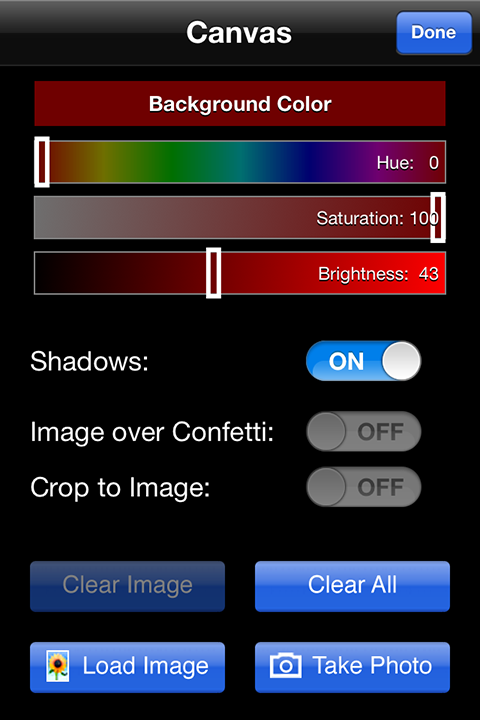
this icon to change the background color or to load an image to include in your artwork. When Shadows are on, each confetti shape casts a shadow. You can turn shadows off for a flatter effect, which you may sometimes want with grid and striped patterns, or with transparent confetti.
Turn on the Crop to Image switch if you want to restrict confetti to the loaded image area. If you want the image to be displayed over the confetti instead of in the background, turn on the Image over Confetti switch. To return to a solid color background, press the Clear Image button. Pressing the Clear All button will clear the image as well as any confetti that you have painted.
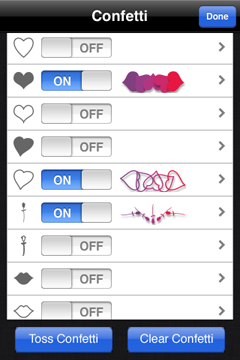
 Press this icon to load your brush with confetti. Turn on as many shapes as you want - you can paint with one or many shapes at a time. Press the Clear Confetti button to erase all the confetti. To see a random arrangement of the confetti you have drawn, press the Toss Confetti button. You can toss the confetti over and over again. You can also use multi-touch gestures on the main view to clear and toss the confetti. To clear the confetti, with two fingers on the screen, swipe to the right or the left. To toss the confetti, use two fingers to swipe from the bottom to the top of the screen. Press this icon to load your brush with confetti. Turn on as many shapes as you want - you can paint with one or many shapes at a time. Press the Clear Confetti button to erase all the confetti. To see a random arrangement of the confetti you have drawn, press the Toss Confetti button. You can toss the confetti over and over again. You can also use multi-touch gestures on the main view to clear and toss the confetti. To clear the confetti, with two fingers on the screen, swipe to the right or the left. To toss the confetti, use two fingers to swipe from the bottom to the top of the screen.
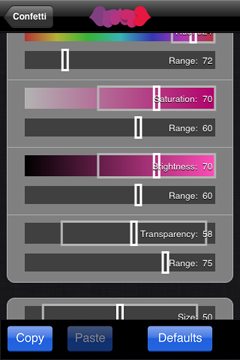
From the table of shapes, you can also access details about each shape, controlling color, rotation and size of the confetti pieces. Most attributes can have a range of values, so two sliders are used. The top slider is used to specify the middle value in the range, and the bottom slider is used to specify the range span. So, for example, to paint with a rainbow of confetti colors, specify a large hue range, and to paint with only blue colors, choose a much smaller hue range. The two sliders are linked, so changing the value of one may also change the value of the other. For example, if the middle value is near the minimum or maximum value, increasing the range will cause the middle value to increase or decrease to "make room" for the larger range.
Use the Copy and Paste buttons to transfer attributes from one shape to another. Press the Defaults button to set all attributes for the current shape to factory defaults.
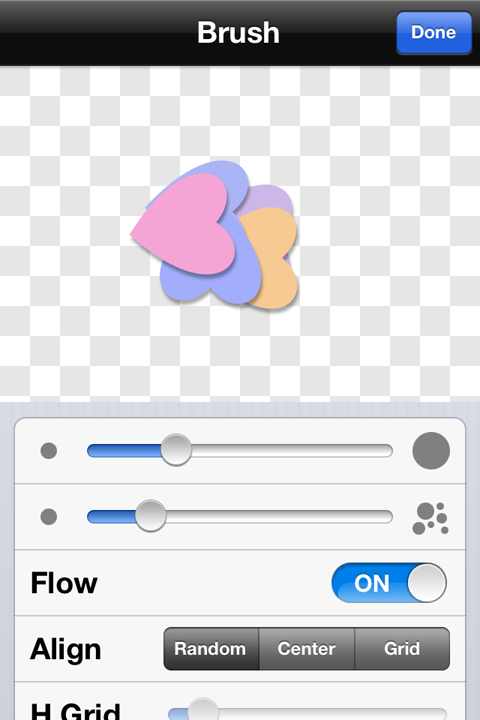
 Press this icon to set brush attributes. The area at the top of the screen is used to preview the current brush settings. The brush size slider controls the size of the area in which confetti will be painted (the size of individual confetti pieces is determined by confetti shape attributes). The maximum brush size is full screen. The second slider controls the brush density, that is, how many pieces of confetti are painted at a time. The Flow switch should be on for normal painting. Turn it off if you want to precisely position confetti. In that mode, when you touch the screen, one brushful of confetti is drawn, and as you move your finger, you can drag it to wherever you want it. Press this icon to set brush attributes. The area at the top of the screen is used to preview the current brush settings. The brush size slider controls the size of the area in which confetti will be painted (the size of individual confetti pieces is determined by confetti shape attributes). The maximum brush size is full screen. The second slider controls the brush density, that is, how many pieces of confetti are painted at a time. The Flow switch should be on for normal painting. Turn it off if you want to precisely position confetti. In that mode, when you touch the screen, one brushful of confetti is drawn, and as you move your finger, you can drag it to wherever you want it.
Choose Random alignment to scatter the confetti under the brush. The confetti is stacked in the center of the brush when you choose Center alignment. If you choose Grid alignment, the brush density slider setting is ignored, and instead, you can specify the number of horizontal and vertical grid points, from a minimum of 1x1 to a maximum of 25x25.
 Press this icon to undo a confetti brush stroke. You can also undo after clearing or tossing the confetti. After an Undo you will be able to Redo. Press this icon to undo a confetti brush stroke. You can also undo after clearing or tossing the confetti. After an Undo you will be able to Redo.
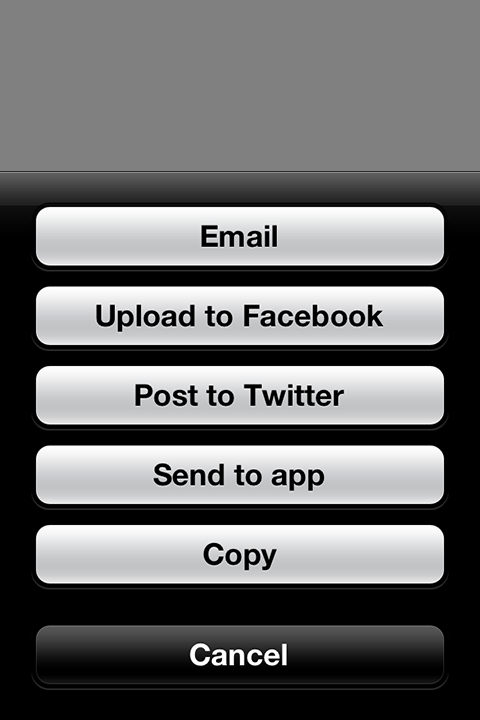
 Press this arrow icon at any time to save or share your artwork. Sharing options include email, uploading to Facebook or Twitter, sending to another app, or copying to the clipboard. Images are saved and shared according to your resolution settings. When saving, a new copy of the image is always created, so you can easily save multiple versions of the same image. Press this arrow icon at any time to save or share your artwork. Sharing options include email, uploading to Facebook or Twitter, sending to another app, or copying to the clipboard. Images are saved and shared according to your resolution settings. When saving, a new copy of the image is always created, so you can easily save multiple versions of the same image.
 Press this icon to view these instructions and to specify personal preferences. Press this icon to view these instructions and to specify personal preferences.
Instructions displays the instructions you are currently viewing. When Startup Tips are on, a helpful tip will be displayed each time you launch the app. All the tips are listed here.
Quick Sets are used to quickly set many controls at once to achieve effects that are illustrated by examples. They have several purposes. You can use them to quickly restore factory defaults, or quickly turn off all confetti shapes. You can use them as a learning tool to discover some of the many things you can do with ConfettiArt. You can use them as starting points for other effects by selecting a quick set, and then modifying some of the settings.
The Save Resolution and Share Resolution settings determine the resolution of your saved and shared images. You can specify that High, Medium, or Low resolution is always used, or you can choose to be asked about resolution each time you save or share an image. In that case, when you are asked, you will have the additional option of specifying a custom resolution, which may be higher or lower than the original image resolution (you can scale down or up, to a maximum of 6000 x 6000).
To maintain your original image resolution, choose High. (If you have loaded a photo, the resolution of that photo is used. Otherwise, the native resolution of your device is used.) Higher resolution images take longer to save, longer to email, longer to upload, and use more space on your device, so don't save or share more than you need. Medium resolution is half the original resolution, and Low resolution is 640 x 640 or less, depending on the aspect ratio of your image. When sharing, note that the service or app that you share with may also scale your image to conform to its resolution requirements.
When AutoSave New Photo is on, the unzoomed version of photos that you shoot in ConfettiArt will be automatically saved at full resolution.
When Shake to Toss is on, you can toss the confetti by shaking your device.
|
 |